What to Do if the GC2e Panel is Not Responding
Before You Begin: Important Considerations
Take note of these points before starting the power cycle.
- Attempt to Disarm: If the panel is partially responsive, try to disarm it using your Master Code or a User Code before starting. This can prevent accidental alarm activations when the panel powers back on. If it's completely unresponsive, you may not be able to do this.
- Static Discharge: Before touching any internal components like the circuit board or battery connector, discharge any static electricity from your body by touching a grounded metal object.
- Tools: You may need a Phillips head screwdriver to remove the panel's securing screw.
How to Power Cycle Your GC2 Panel
Follow these step-by-step instructions to perform a full power cycle.
Attempt to Disarm System: If your panel allows any input, press SECURITY and enter your Master Code or a valid User Code to disarm the system. If it's completely frozen, proceed to the next step.
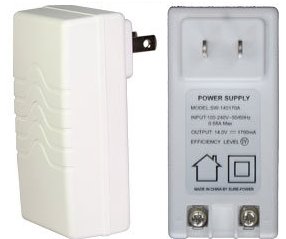
Unplug the Power Supply (Transformer): Locate the panel's power transformer. This is usually a white or black box plugged into a nearby electrical outlet. Unplug it from the outlet. The panel may beep or announce "AC Power Loss" if it has some battery power remaining; this is normal.
Open the Panel: Locate the securing screw, which is often on the top of the GC2 panel (as shown in the image) or sometimes at the bottom. Remove this screw using a Phillips head screwdriver. After removing the screw, there are typically two tabs on the top edge of the panel. Press these tabs inward simultaneously, then gently pull the top of the panel forward and allow it to swing downward, hinging from the bottom.

Note: The draft mentions "pry open the slots with a screwdriver." This might be necessary if the panel is tight on its backplate or if the top tabs are stiff, but generally, pressing the tabs is the primary method after screw removal. Pry gently only if needed to avoid damaging the casing.
Secure the Panel Temporarily: Gently pull the front cover down. If equipped, use the plastic strap to hang the panel from the backplate. This prevents strain on internal wires.
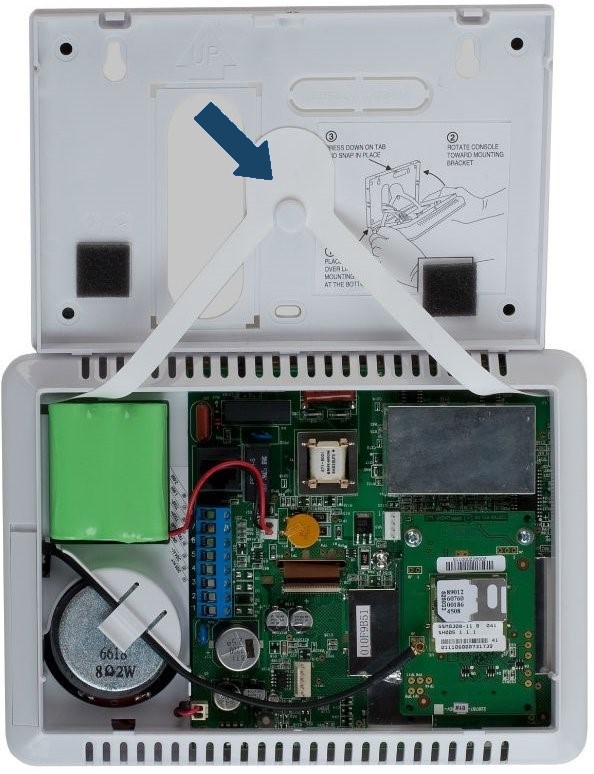
Disconnect the Backup Battery: Locate the battery inside the panel. It will have a wire leading to a connector on the main circuit board. Carefully unplug this battery cable from the circuit board. Grip the plastic connector itself, not the wires, to avoid damage.
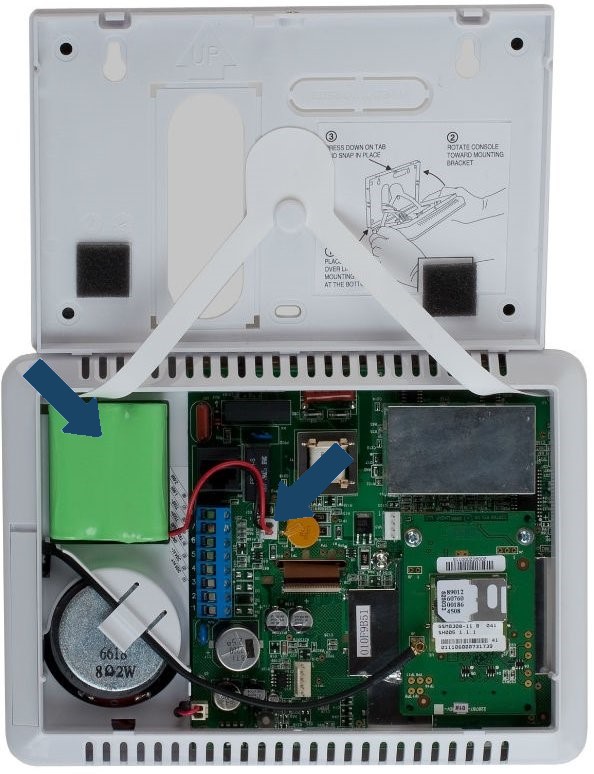
Wait: With both AC power (transformer unplugged) and the backup battery disconnected, wait for at least 1 to 2 minutes. This allows the panel to fully discharge and reset its internal memory.
Reconnect Power:
- First, plug the backup battery cable back into its connector on the circuit board. Ensure it's securely seated.
- Carefully swing the front cover of the panel back up into its closed position. Ensure no wires are pinched. Press it firmly until it latches or clicks into place.
- Re-insert and tighten the securing screw (from step 3) if your panel has one.
- Finally, plug the power supply (transformer) back into the electrical outlet.
Allow Panel to Boot: The panel should begin to power up. This boot-up sequence may take several minutes. Wait for the main home screen to appear.
What to Expect After Power Cycling
Observations after your GC2 panel restarts.
- The panel will go through its startup sequence, which can take a few minutes.
- Once fully booted, the touchscreen should be responsive. Test basic functions like navigating menus or arming/disarming (if you wish to test further).
- The date and time should be correct if the panel can sync with a cellular network or if it retained settings. If not, it might need to be set or will update automatically once communication is re-established.
- The panel might display some initial trouble alerts, like "AC Power Loss" (if it was unplugged recently and the battery took over) or "Panel Low Battery" (if the battery was drained or is old). These should clear as AC power stabilizes and the battery recharges. Allow up to 24 hours for a low battery condition to clear if the battery is healthy.
Troubleshooting After a Power Cycle
What to do if the power cycle doesn't fully resolve the issue or new problems arise.
Panel is Still Unresponsive or Frozen
- Verify Power Connections: Double-check that both the AC power transformer is securely plugged into a working outlet and that the backup battery is firmly connected inside the panel.
- Backup Battery Condition: If the backup battery is very old or completely dead, it might not be able to support the panel's startup process even if AC power is briefly interrupted or unstable. If the panel works on AC but not on battery, or vice-versa, this points to an issue with one of the power sources.
- Try Again: Sometimes, a second power cycle attempt might be needed. Repeat the steps carefully.
- Internal Hardware Issue: If the panel remains unresponsive after multiple power cycle attempts and verifying power, there might be an internal hardware problem that requires professional service.
Panel Does Not Power On at All
- Check Outlet: Confirm the electrical outlet for the transformer has power by testing it with another device.
- Transformer and Battery: Ensure both the transformer is plugged in and the battery is connected. Some panels may require both to be connected to initiate a full startup after being completely powered down.
- Secure Connections: Re-check all connections you handled: battery plug to circuit board, panel closing securely.
- If the panel shows no signs of life (no lights, no screen activity), this could indicate a faulty transformer, a completely dead battery, or a more serious internal panel issue.
Panel Powers On But Shows New Errors or Behaves Erratically
- Note Error Messages: Carefully write down any specific error codes or messages displayed on the panel.
- Allow Time to Settle: After a reboot, the panel needs time to re-initialize all its systems and communication paths (e.g., cellular, Z-Wave). Give it 5-10 minutes.
- Address Specific Troubles: If it reports "Communication Failure," "Sensor Trouble," or "Low Battery," these might be pre-existing conditions now evident, or issues that arose during the power loss. These would need to be troubleshooted individually.
Further Reset Options (If Power Cycle Fails)
Important considerations if a power cycle does not restore responsiveness.
Warning: Performing advanced resets, such as a factory default reset, on your GC2 panel will erase all custom programming. This includes all sensor configurations, user codes, Z-Wave device pairings, and communication settings. This action should only be taken as an absolute last resort and ideally by a qualified technician or under the direct guidance of technical support, as it will render your system non-functional until fully reprogrammed. You must contact us after any such reset: 954-573-9193
If a full power cycle as described above does not resolve the unresponsiveness of your GC2 panel, it may indicate a more significant software corruption or an internal hardware problem. While options like a factory default reset exist within installer programming, these are complex and carry significant risks if not performed correctly.
We strongly advise against attempting a factory reset yourself. Instead, if your panel remains unresponsive after a power cycle, please contact us for professional diagnosis and assistance. Our representatives can help determine the cause and recommend the safest course of action, which might include guided advanced troubleshooting or arranging for service.
Further Assistance
How to get more help if your GC2 panel remains unresponsive.
If the power cycle does not restore your panel's functionality, or if you encounter other issues or are uncomfortable performing these steps, please don't hesitate to reach out. You can text a Support Representative any time at 954-573-9193.