Video Doorbell Chime

Video Doorbell Chime

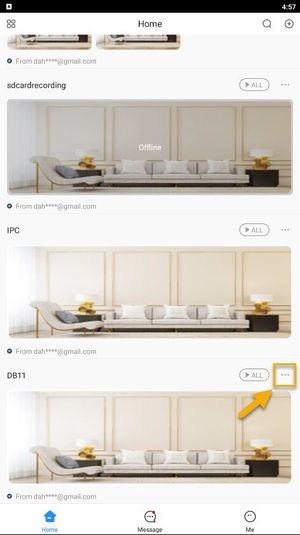
Tap on DMSS Icon Live Home.png Home to locate your device list. Select your DB11 device and tap on ... icon.

DMSS Share Device 2.jpg


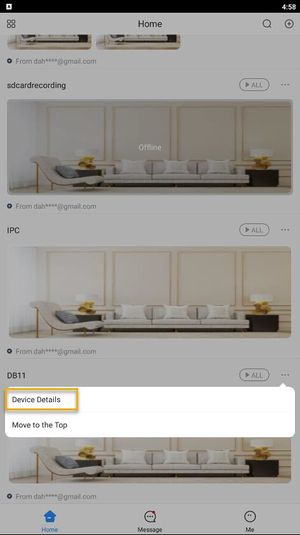
Tap on Device Details.
DMSS Share Device 2-1.jpg

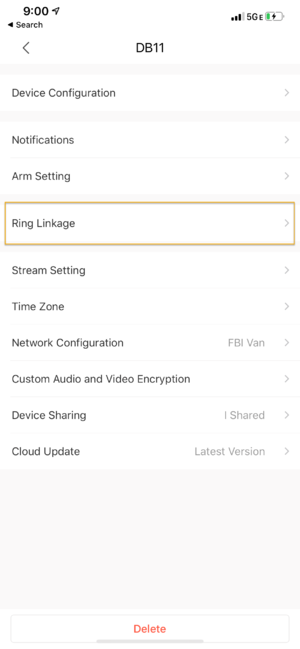
Tap on Ring Linkage
DMSS Ring Linkage Setup 10.png

Under Link Chime, Tap on the + button to add the Door Chime.
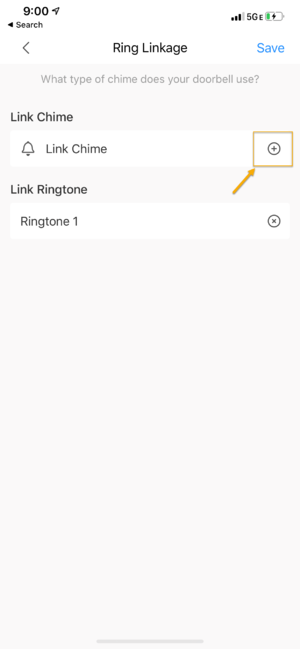
DMSS Ring Linkage Setup 11.png

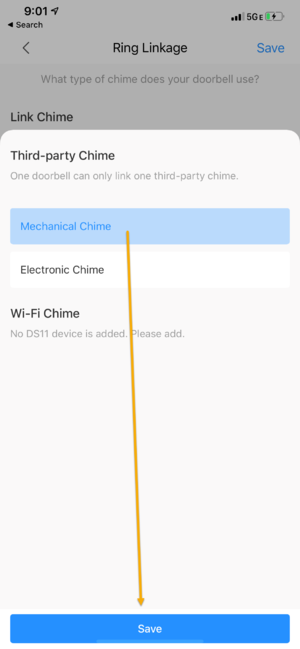
Select either Electronic Chime if you are using an Electronic door chime or Mechanical Chime if you are using a Mechanical door chime.
Then tap on Save on the bottom.
DMSS Ring Linkage Setup 12.png

Tap on Save again to complete the setup.
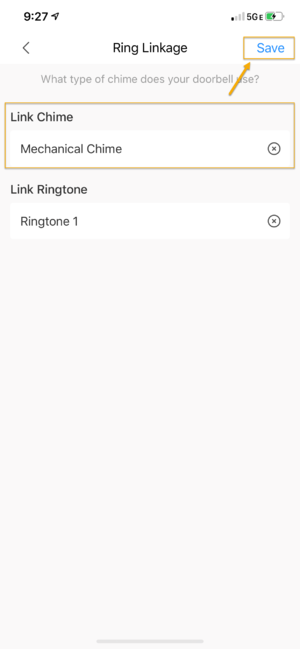
DMSS Ring Linkage Setup 13.png
    • Related Articles

    • How to save a video clip from the Lorex App

    • I recently changed internet providers and I cannot view my cameras.

      Troubleshooting Camera Viewing After Changing Internet Providers If you've recently changed your internet provider and are no longer able to view your security cameras, follow the steps below to get reconnected. We've broken it down by common ...
    • DMSS App - Live View

      This article will cover how to access the live view of Dahua devices in the DMSS Mobile App. Video Instructions Method 1: Live Video from a single Dahua device <br> Method 2: Live Video from multiple Dahua devices <br> ...
    • Superlive Plus App - Live View and Playback

      Video Tutorial: <br> The following article provides instructions on how to playback the Superlive Plus App To add a NVR or DVR : Open your Superlive Plus. Select a Live video and tap the play button on the bottom. Tap the Calendar Icon Select a ...
    • DMSS App - Playback

      This article will cover how to play recorded video in the DMSS Mobile App. Video Instructions Method 1: From Live View 1. Open the Live View of one of the camera channels. Then tap on the Playback icon 2. The app will start playing back footage from ...