Change or Reset Your Recorder's Password Through Your Recorder (Old Local UI)
Change Your Recorder's Password Through Your Recorder (Old Local UI)
Note: Only the device owner has the authority to change the recorder's password; shared users do not possess this capability.
- Log in to your recorder using the recorder username (default: admin) and your current password.
- From the Liveview display, right-click to open the Quick Menu, then click Main Menu > ACCOUNT > User.
- Under the admin username, click the icon
 underneath Edit.
 - Adjust the following settings:
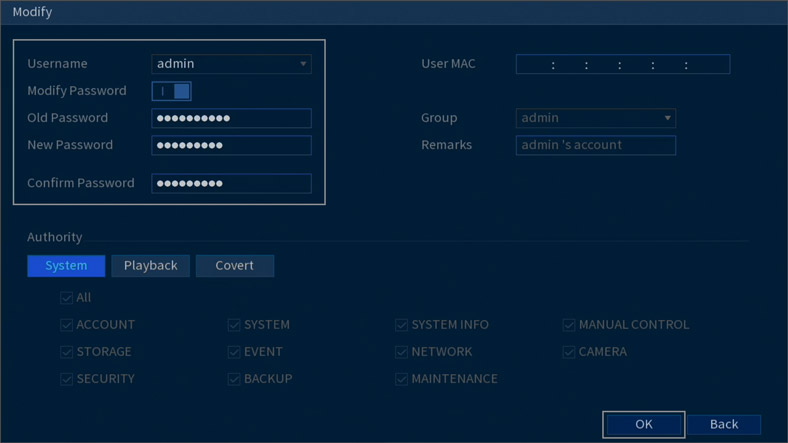
- Username: Select admin.
- Modify Password: Enable the option to change your recorder's password.
- Old Password: Input your current password.
- New Password: Enter your new, secure password.
Note: Ensure your recorder's new password is between 8 to 32 characters and includes at least 2 character types: lowercase, uppercase, numeric, and special characters.
- Confirm Password: Re-enter your new, secure password.
- Click OK to save your changes.
Your recorder's new password is now ready for use during login.